MarketWired Press Releases
Press releases are essential for increasing brand awareness and helping public relations (PR). But if nobody sees the release, it won’t get very far. It must be distributed effectively to get the story picked up by national newspapers, magazines, or blogs.
MarkedWired is headquartered in Canada that has recently merged with the company GlobeNewswire.
The challenge was creating an intuitive distribution process workflow while building an integrated but independent Wysiwyg press release creator. In the first quarter after the implementation of the new distribution process, a quantifiable success marker was a 30% increase in distributed press releases for Marketwired. In comparison, costs were reduced by 15%.
In this freelance assignment, I was the Information Architect and Interaction Designer, while I art directed the creation of visual design artifacts.
Tasks:
Information Architecture, UX Design, Art-Directing Visual Designer
Press Release Creation and Distribution
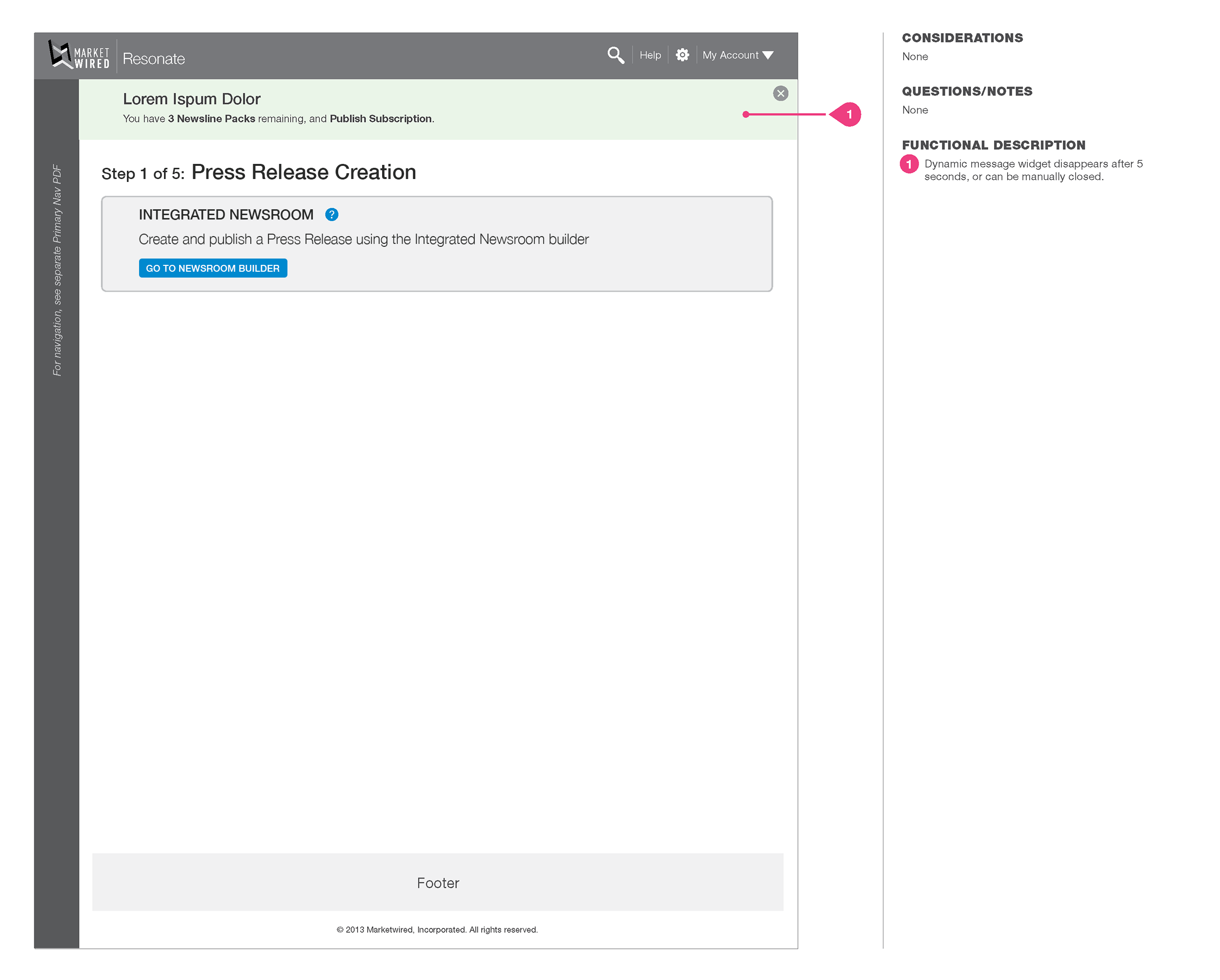
First Step of the Process
The first step is to call out the creation of the press release. Clicking the button will take the user to the press release builder. After the release is published, the user will continue with step 2 of the process in the already-started workflow.
Integrated Press Release Builder
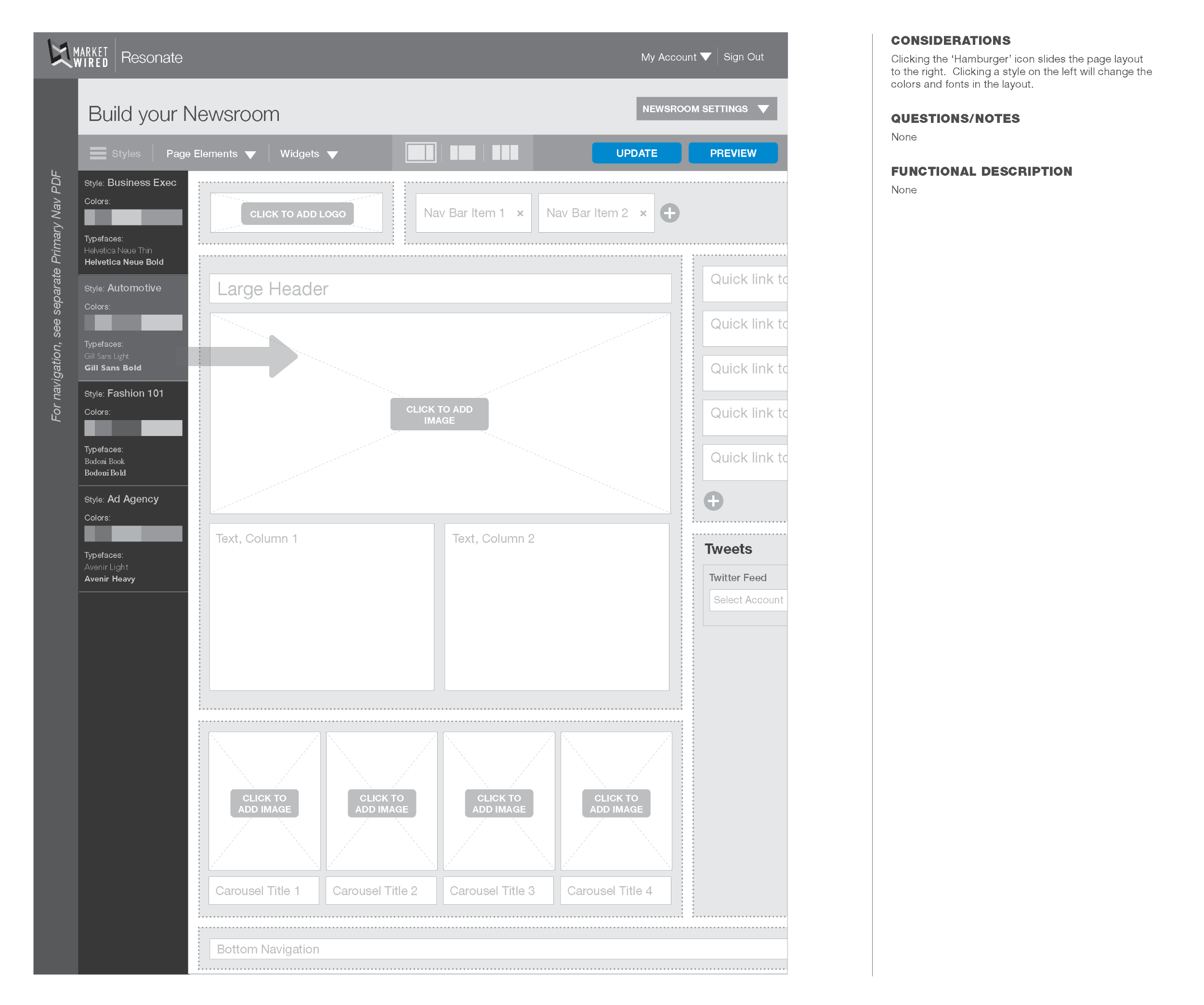
This is a page of the WYSIWYG (what you see is what you get) press release builder, an enclosed feature within the more extensive process.
The drawer on the left houses different design themes based on the look & feel of particular industries.
Press Release Builder continued.
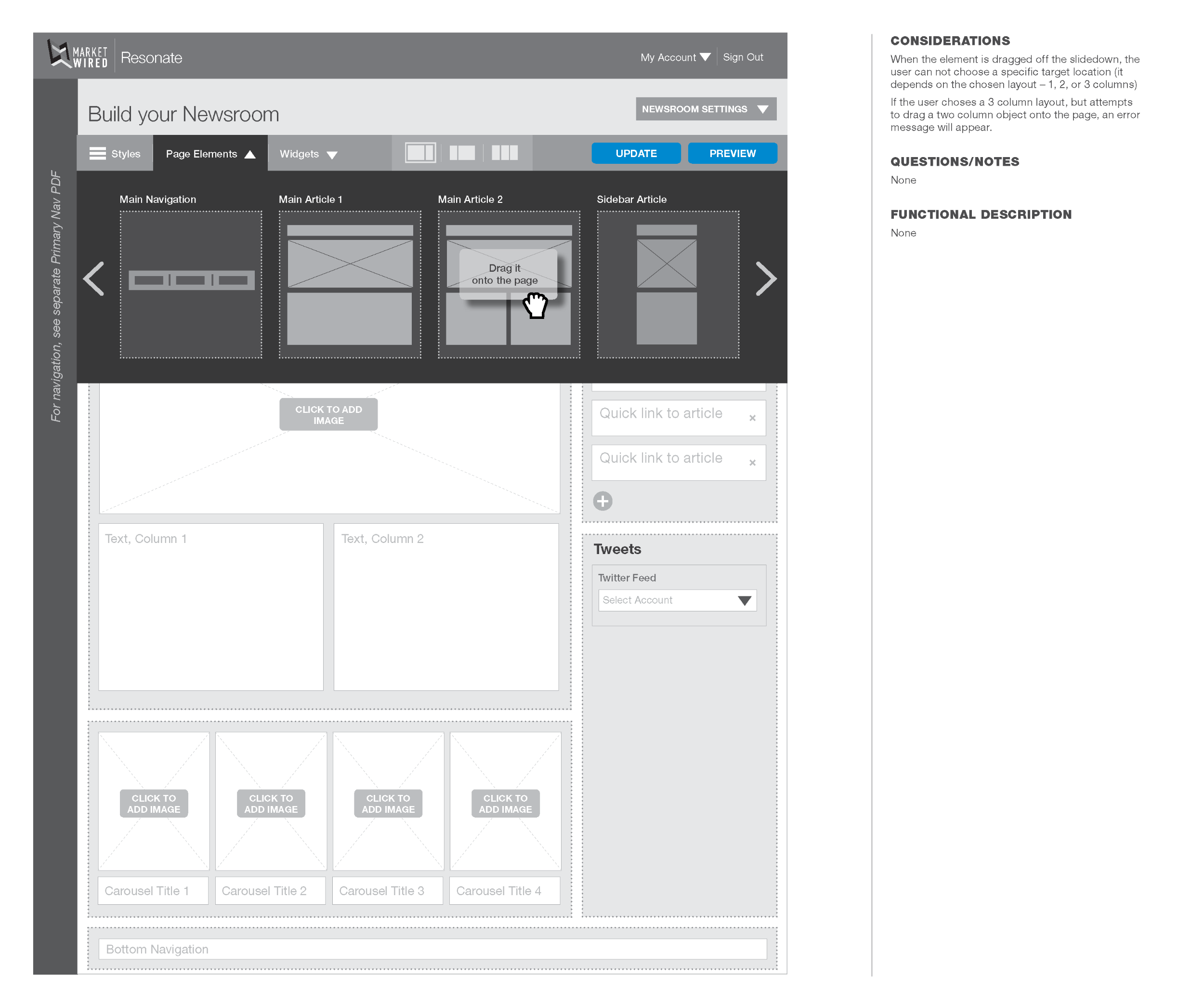
This page of the integrated newsroom shows the page elements menu. It allows the user to add page elements to the layout via drag and drop.
Press Release Settings
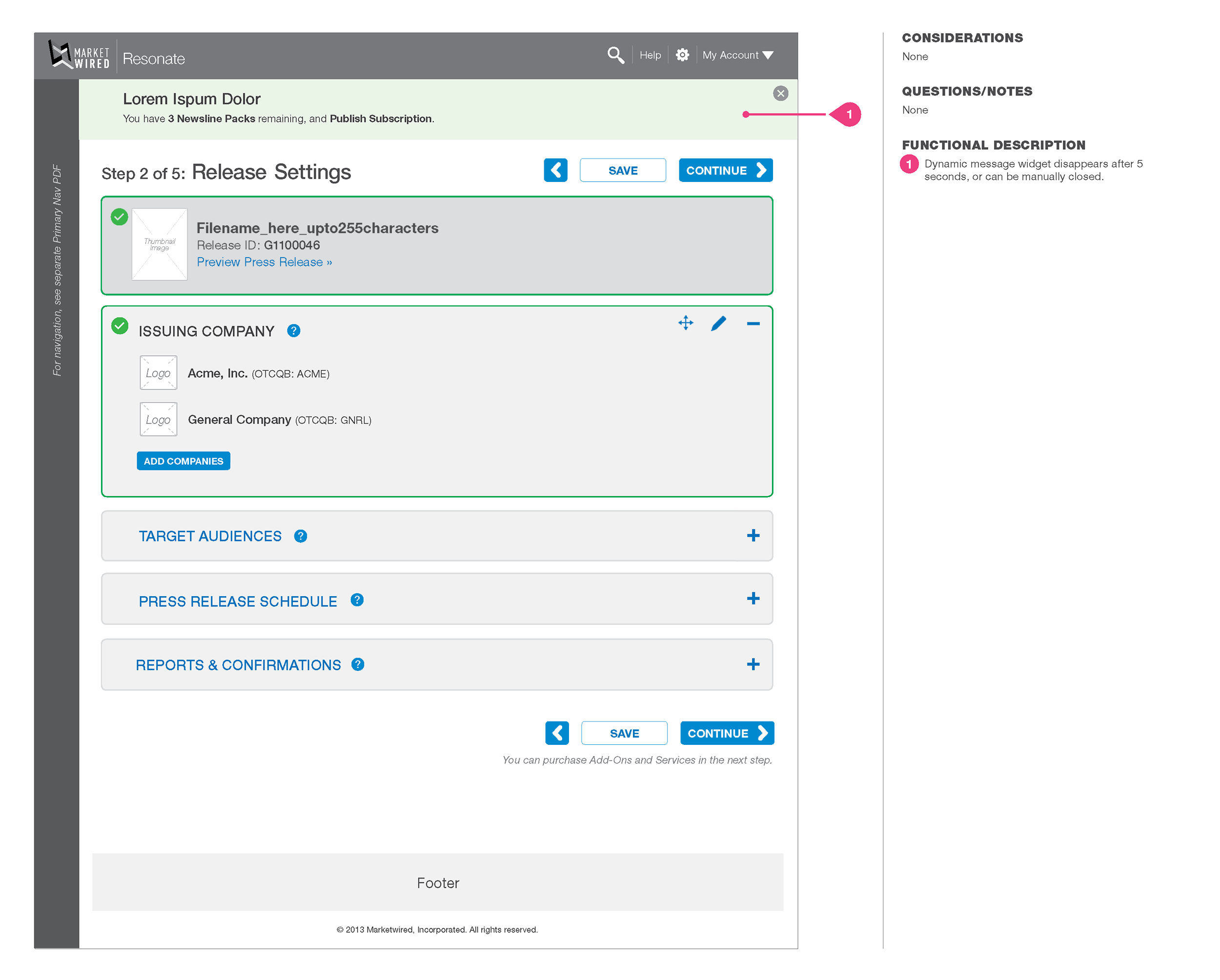
Step 2 of the process displays a thumbnail and the press release filename. In this view, the user has already continued to the next step, added two issuing companies, and is ready to click ‘Add Companies’ to add another one.
Adding an Issuing Company
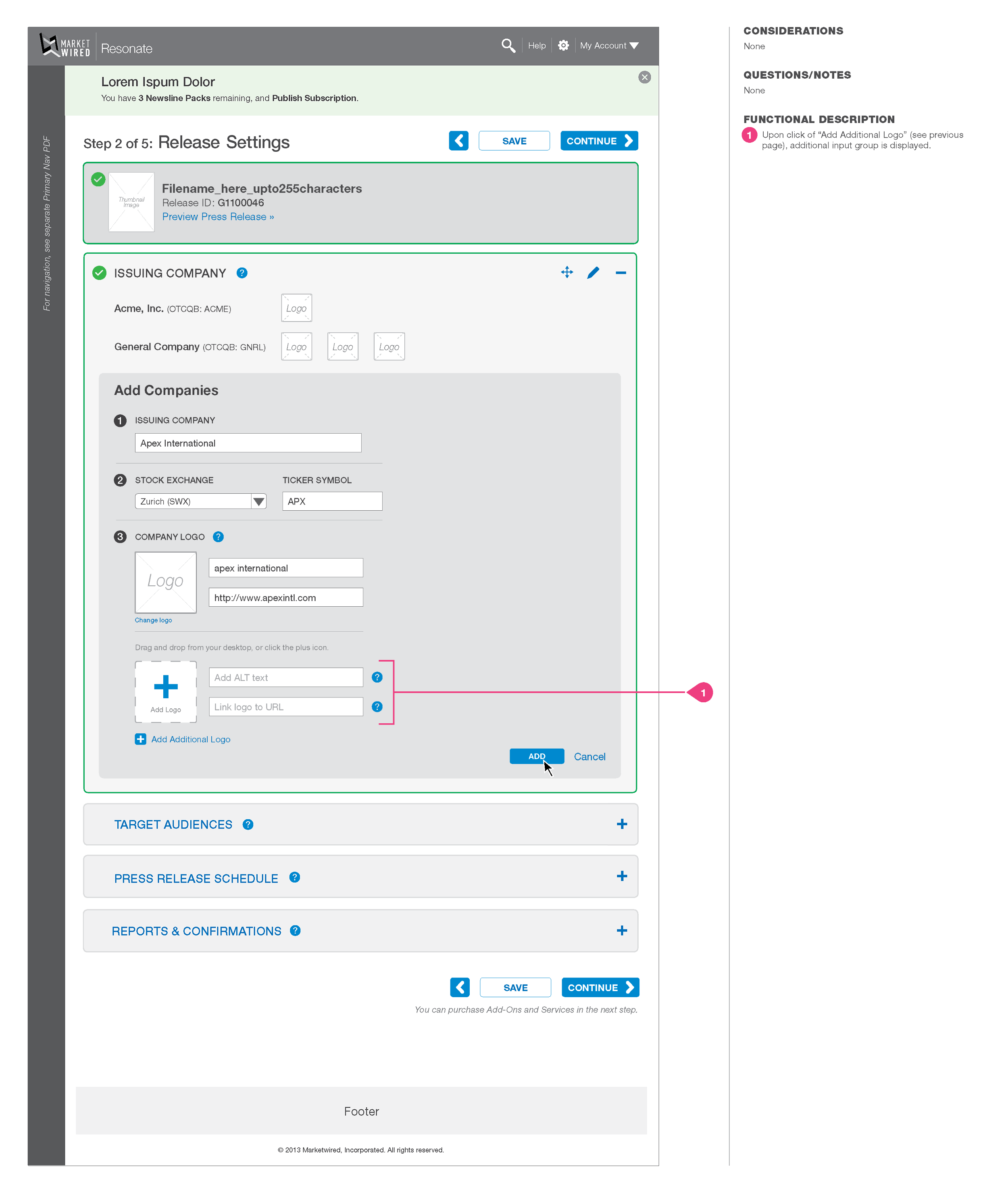
In this 3-step process, the user adds a company to the issuing company section.
Changing the Issuing Companies Order
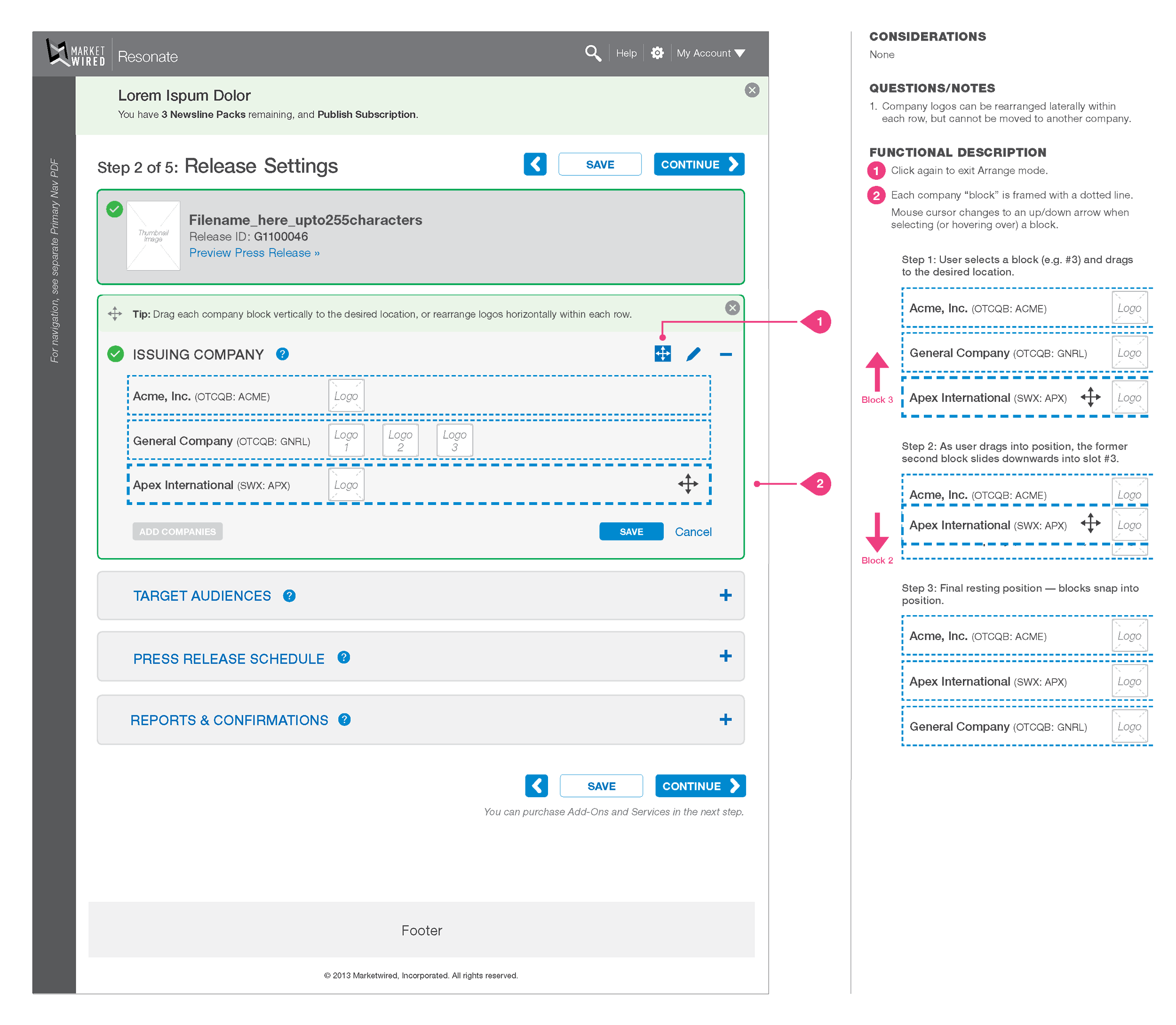
This screen describes the functionality of dragging and dropping to change the order of list items.
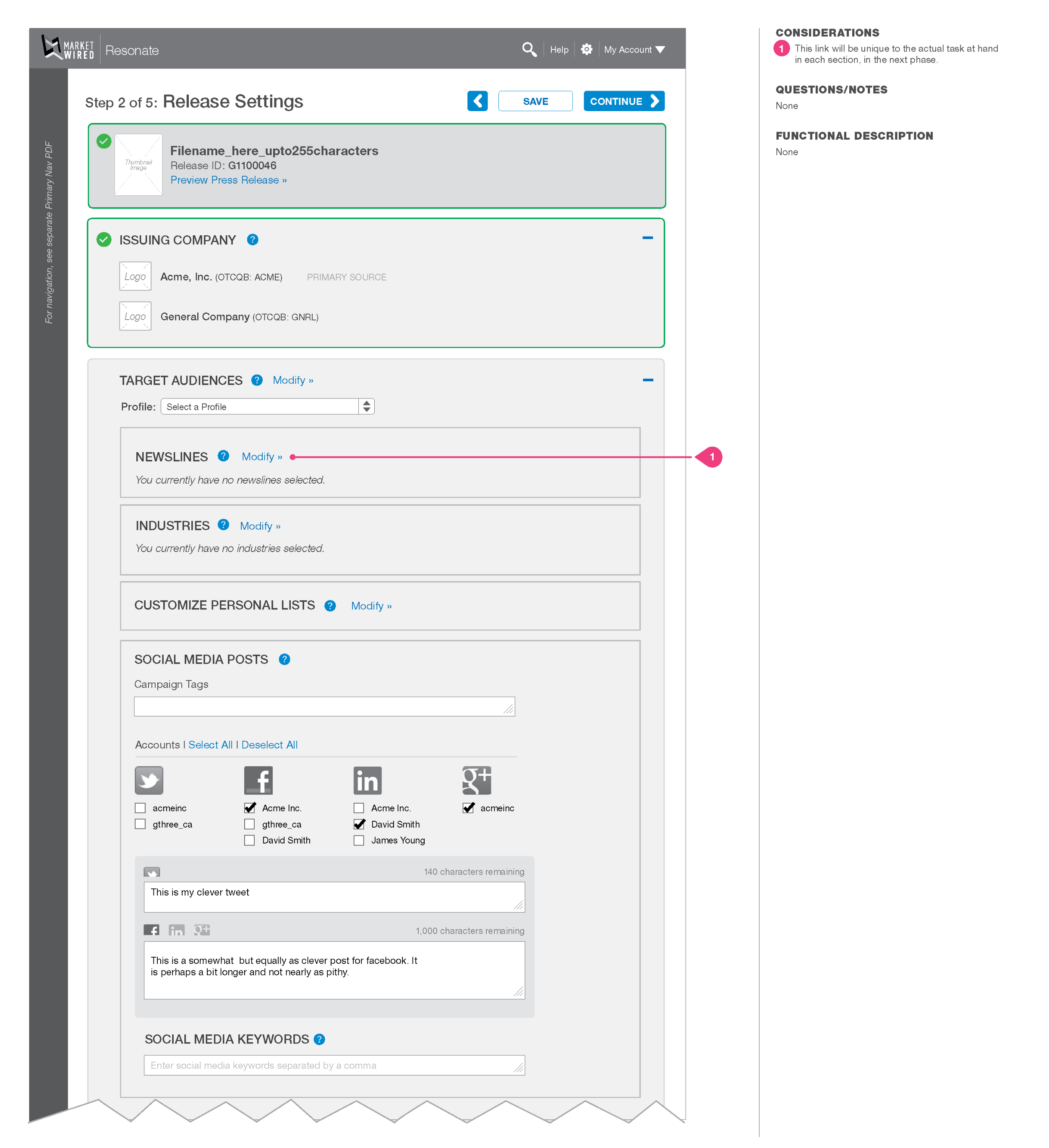
Target Audiences
In this section, the user can select news lines, industries, customize personal lists and select social media channels for their posts.
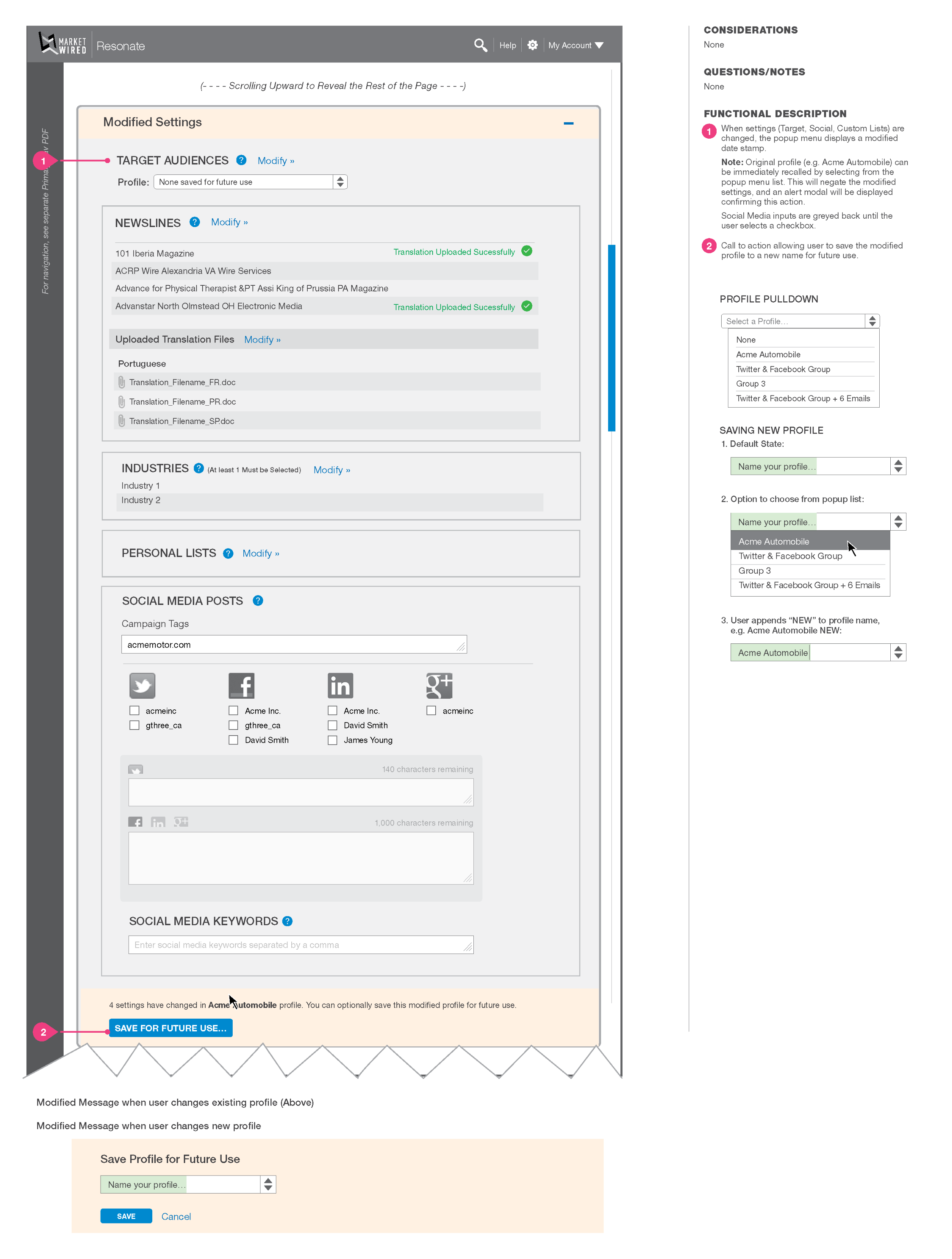
Modified Profile Settings
On the top of this screen, the user is notified that the settings for this profile have changed. On the bottom of the page, the user can save them for future use.
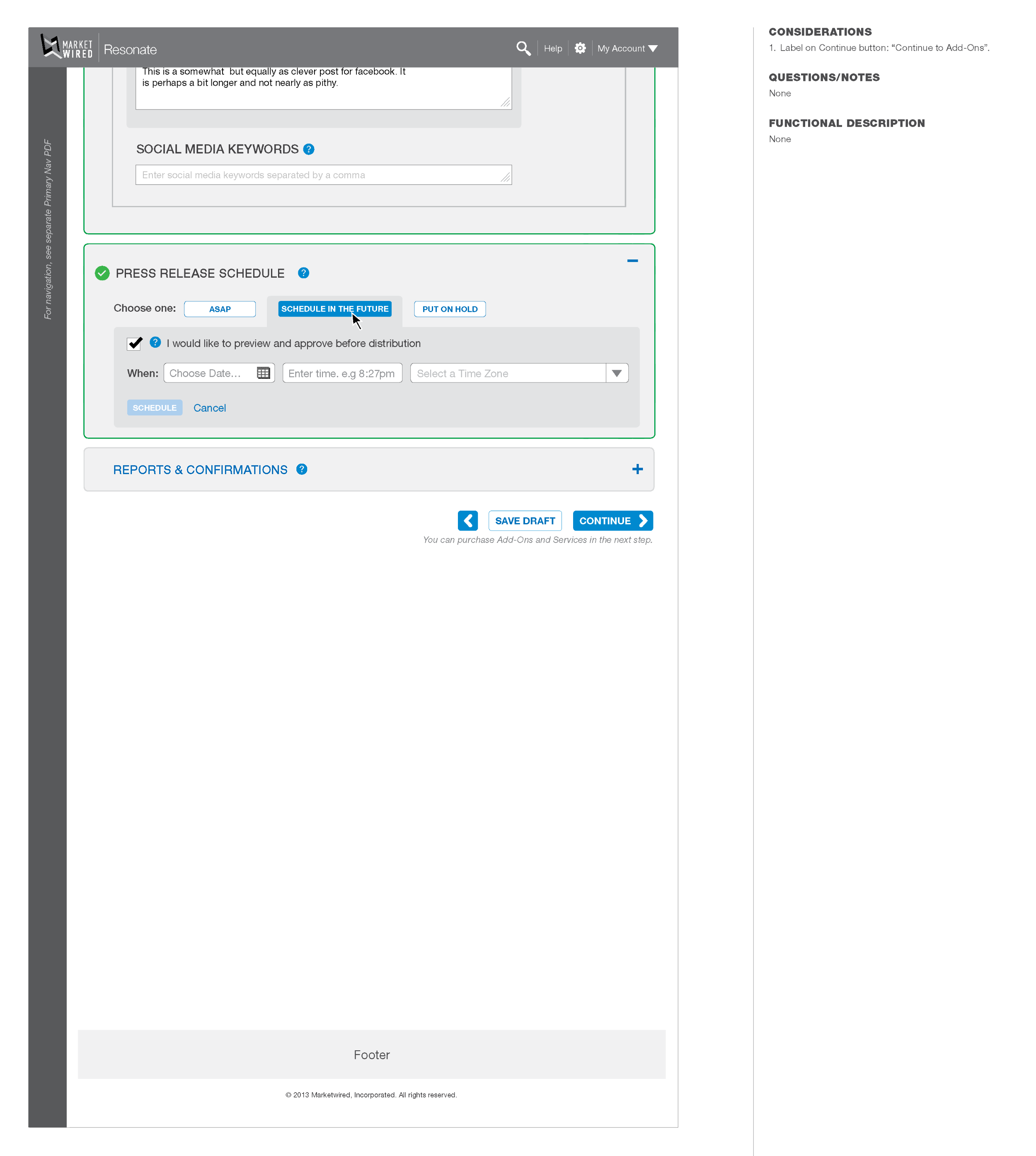
Press Release Schedule
This next item in the settings flow sets the schedule for the press release.
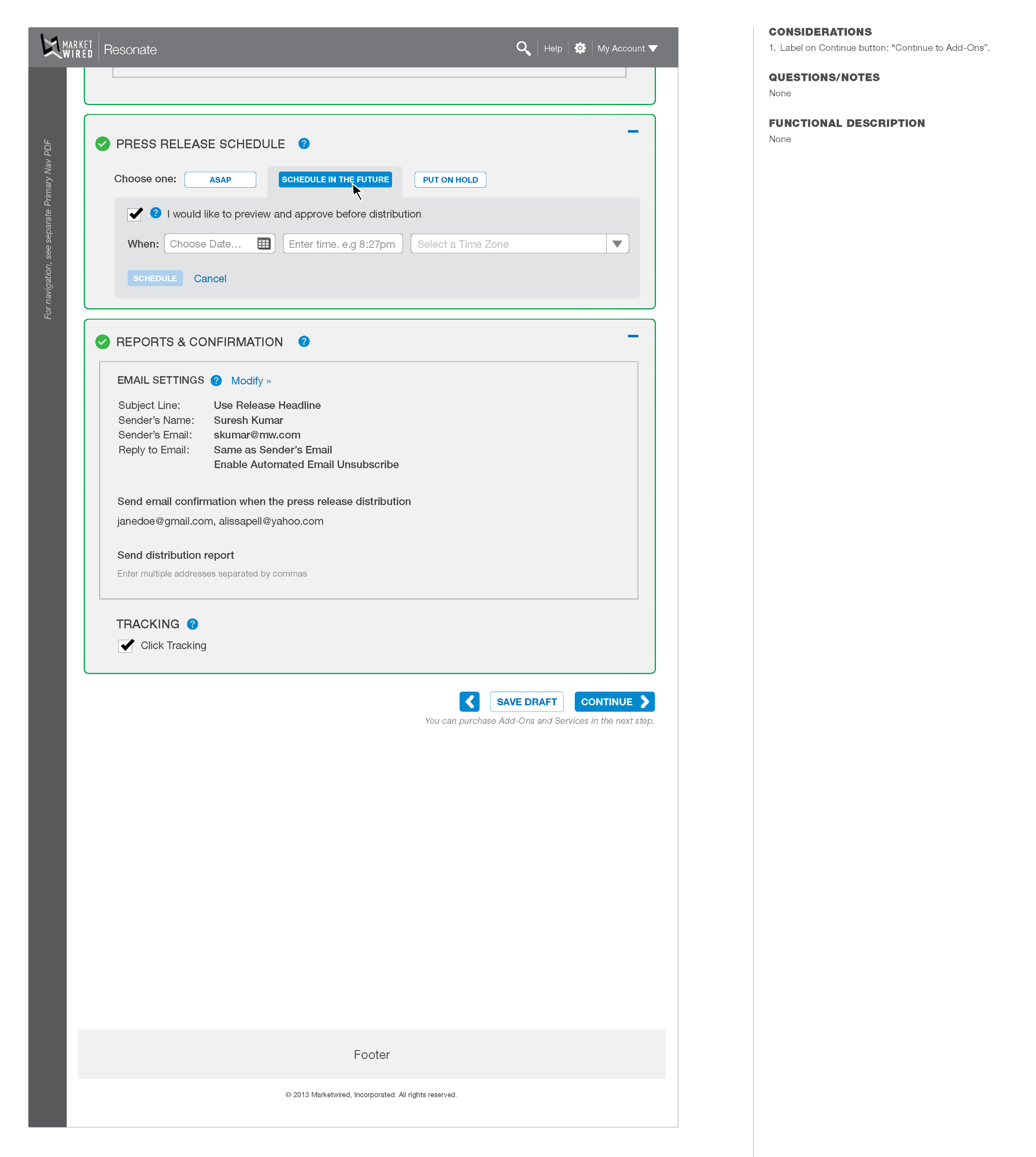
Reports & Confirmation
The last item in this settings section is where the user establishes the destination and details for reports and confirmations.
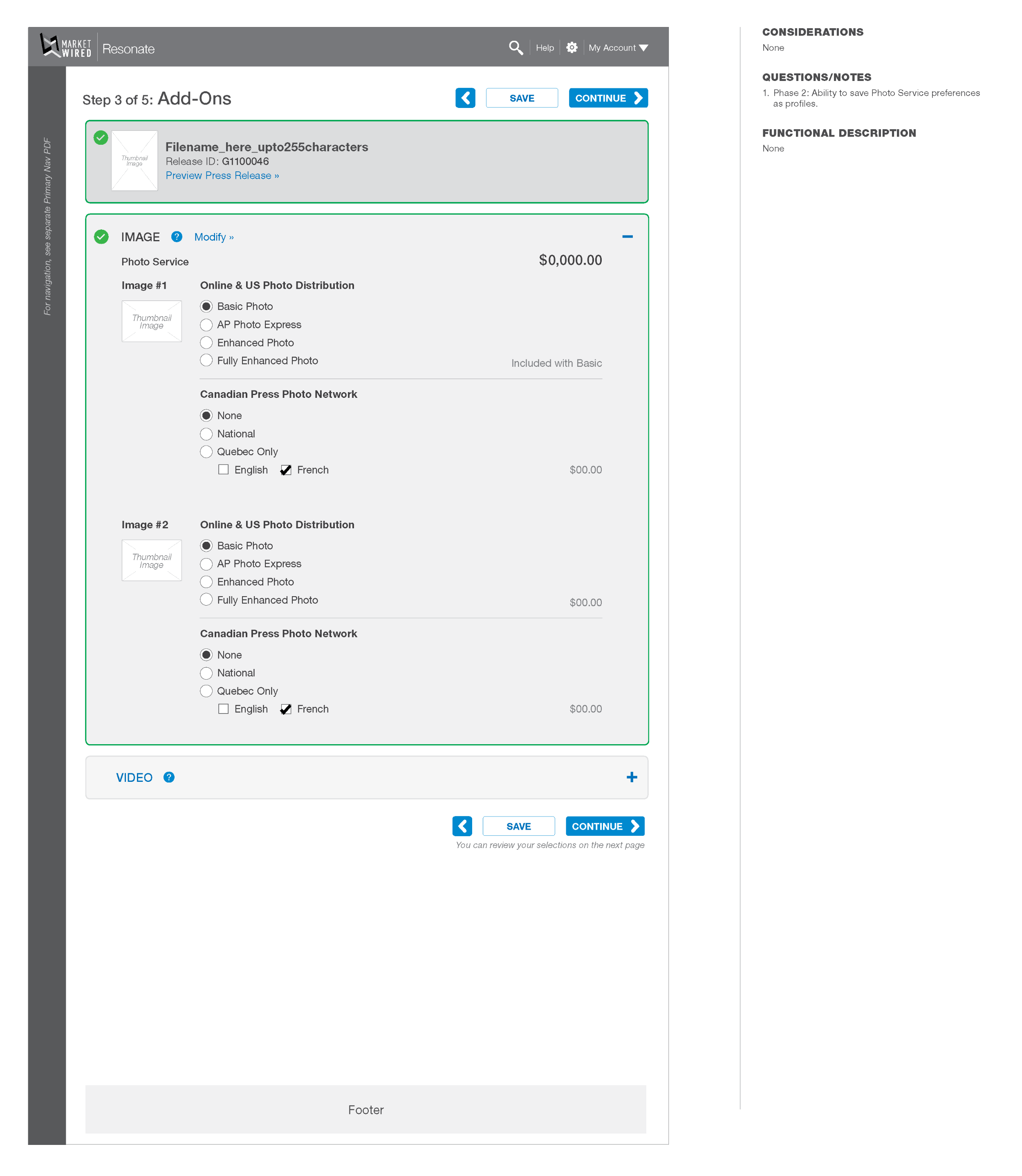
Photo and Video Add-Ons
The user can add images and videos to the press release in this step.
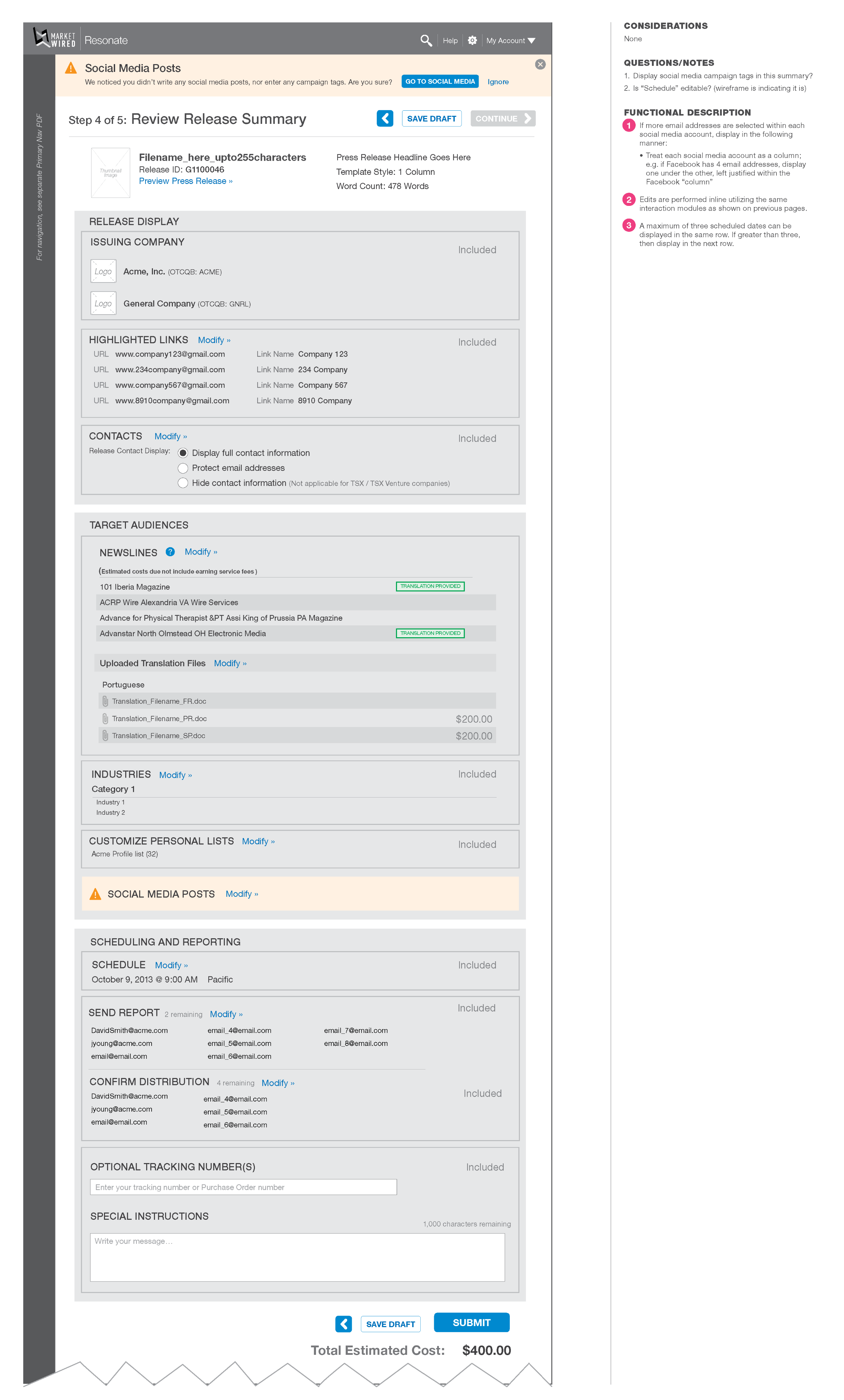
Review Release Summary
This screen displays the release summary. In this view, the system notifies the user that no social media posts have been added to the campaign, with the option to return to that particular feature.
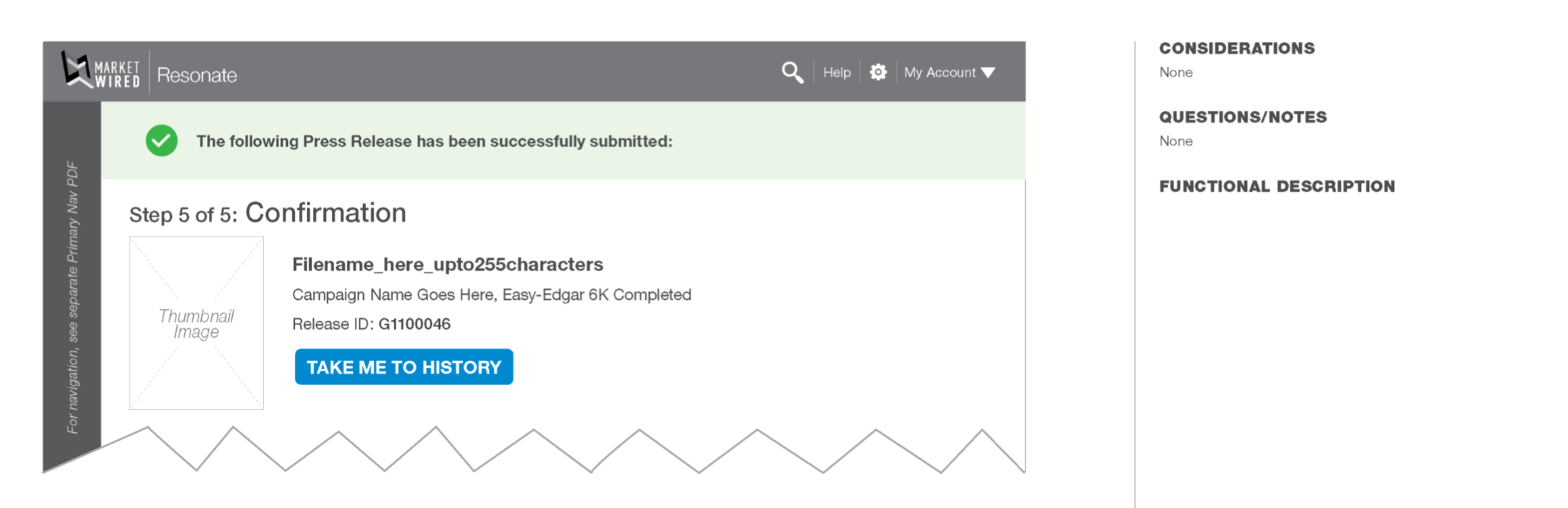
Confirmation Screen
This screen displays the thumbnail, filename, and additional press release details.
Visual Design
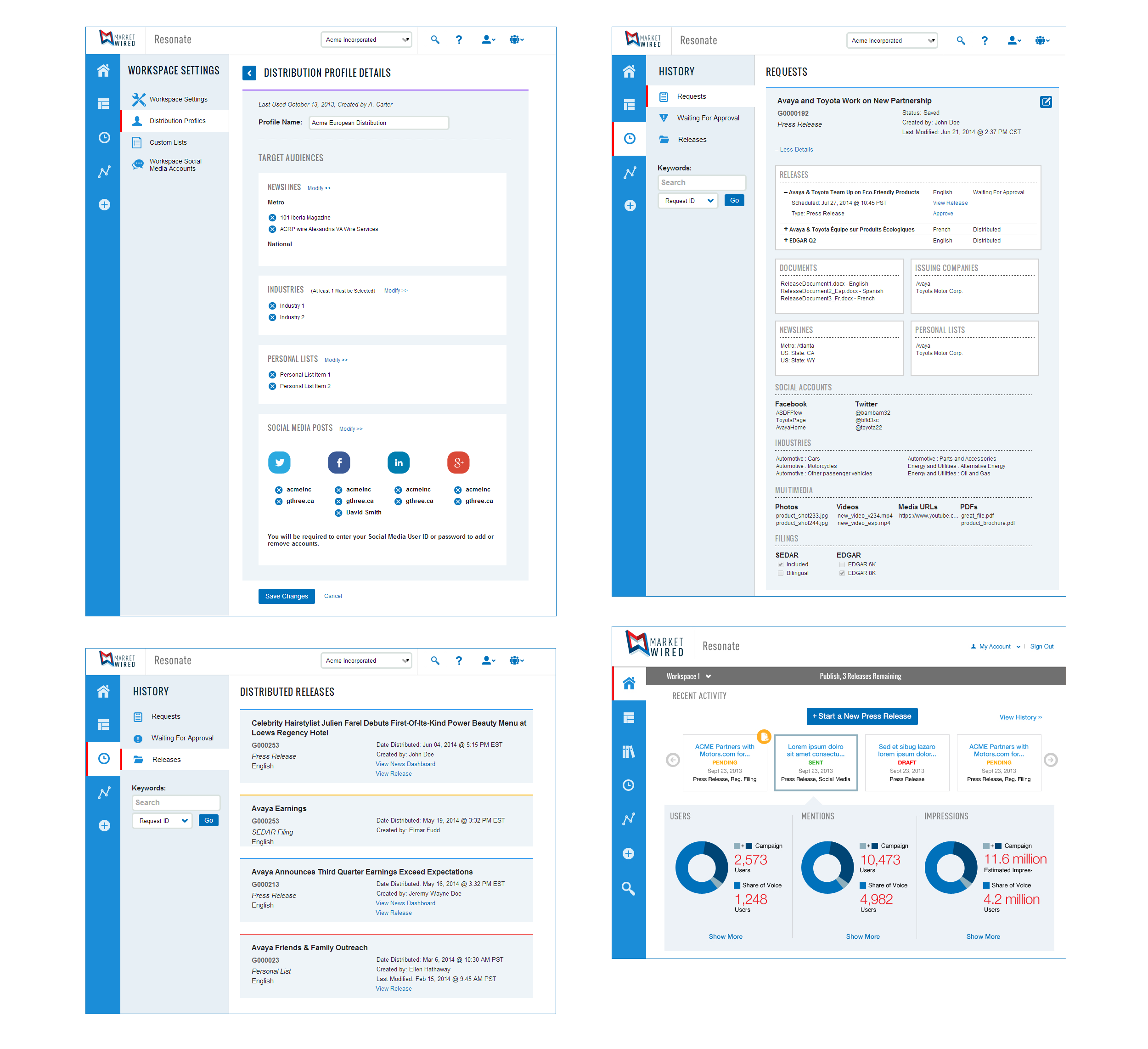
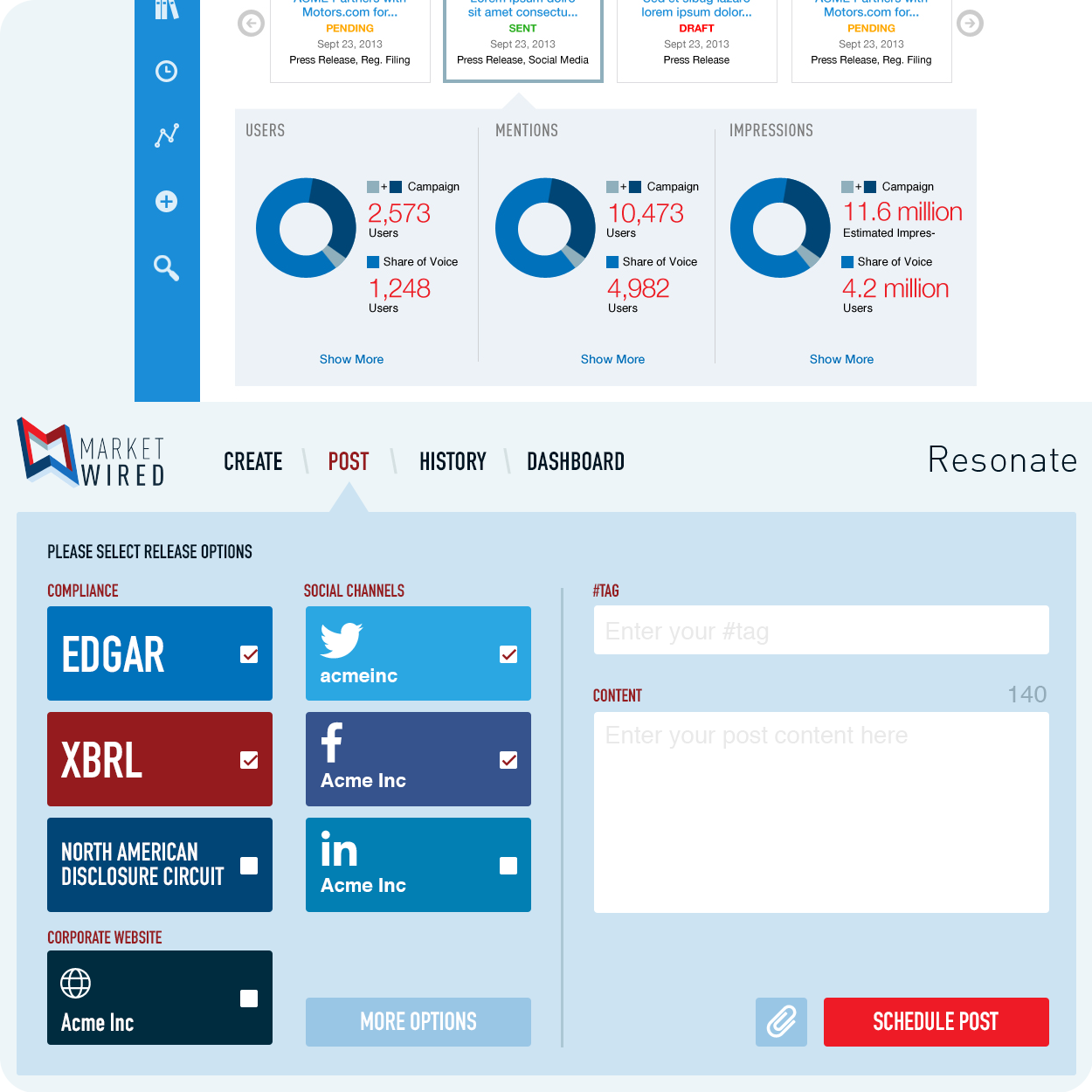
These screens show the final visual design of the distribution feature and a few other web application pages.